Activity
An activity is simply a standalone page/window, that is responsible for displaying UI and handles interaction events.
AndroidManifest.xml
AndroidManifest.xml is the global registration center for all Activities, otherwise, the app does not know the existence of this activity.
Let’s peek into it:
1 |
|
Something to notice here.
android:name = ".MainActivity"tells the class name of activity. Preceding.stands for package name. In my example, the package name iscom.example.myfirstactivity, thus the full name of this class name iscom.example.myfirstactivity.MainActivityandroid:exported = "true"tells that this activity can be accessed by external apps.<intent-filter>. Theactionandcategorytags together tells the system that this activity is the main entrance of the app (ACTION_MAIN) and should appear in phone’s app launcher (CATEGORY_LAUNCHER)
Page Layout
How does a page (activity) looks like is determined by a .xml layout file, which is often located in app/src/main/res/layout/.
In Android Studio, when opening such file, we can directly edit the .xml file to edit the layout.
activity_main.xml
activity_main.xml1 |
|
The defined layout can be loaded into activity with setContentView
1 |
|
Lifecycle of Activity
Activity is page. Using app of course means changing between pages, which leads to “exiting from one activity” and “entering into another new activity”.
Android informs us the the change of states of activities through Lifecycle callbacks that are triggered at some timings, which we can override to perform some necessary functionalities.
Lifecycle Callbacks
onCreate(Bundle savedInstanceState)Invoked at the first time when it’s created. Invoked only once in its whole lifecycle.
We may do some initialization jobs here, e.g.
- invoke
setContentView()to set page layout - initialize variables, and bind views with
findViewById - set event listener
- restore previously saved state from
savedInstanceState
- invoke
onStart()Invoked at the time when activity is ready to be presented and is going to be visible, but yet to be interacted with.
We can do some UI-related preparation works here.
onResume()Invoked when activity is completely visible, and receives focus from user and can be interacted with.
This is the main stage for an activity to interact with the user. e.g., start animation, camera, register event listeners that requires focus.
onPause()Invoked when activity is about to lose focus but still (partially) visible. Typically scenarios include pop-ups, or pressing home.
Since this the sign of pausing, we should only do light-weight operations because the starting of next activity will wait for the completion of a previous activity’s
onPause().Some typically operations that can be done in this stage include
- pause video/animation
- save unsubmitted data/drafts
- release system resources, e.g., camera
onStop()Invoked when the activity is completely invisible. At this time, the activity goes to backend. We can perform some more aggressive resource release.
onRestart()Invoked when an already
onStop()-ed activity is back to focus, beforeonStart().This usually means this activity is being re-displaying. We can perform some restoring.
Note that, the invocation order is
onRestart()->onStart()->onResume()onDestroy()Invoked only once during the whole lifecycle, at the time before its destruction. We should release all resources here, e.g., cancel network requests, unregister listeners and clean threads.
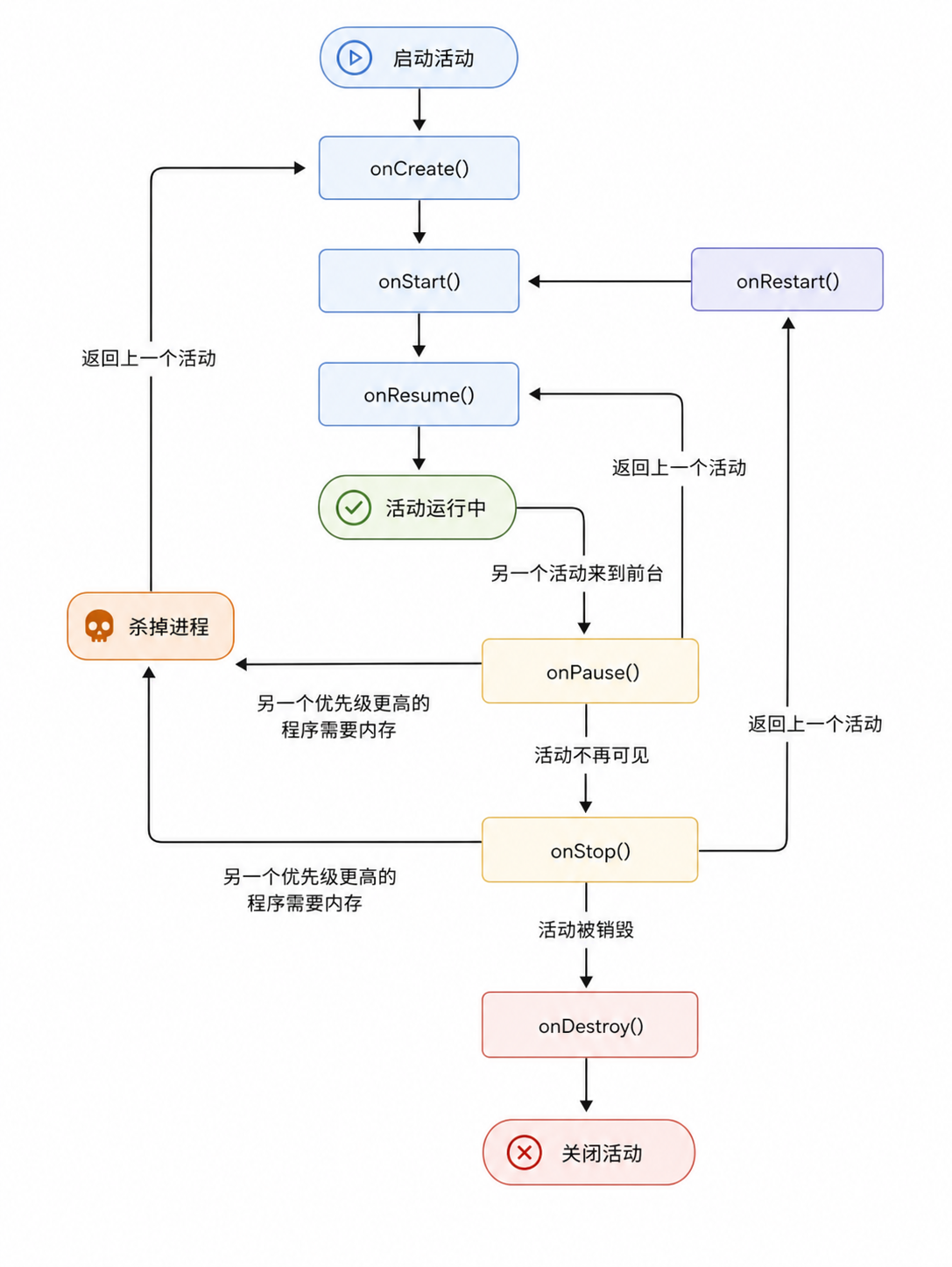
Here are some typical scenarios:
- Start app for the first time.
onCreate() -> onStart() -> onResume() - Press Home to put App at backend.
onPause() -> onStop() - Reopen App from desktop or recent apps.
onRestart() -> onStart() -> onResume() - Press return and exit App.
onPause() -> onStop() -> onDestroy() - Rotate screen.
onPause() -> onStop() -> onDestroy() -> onCreate() -> onStart() -> onResume().
We should notice the
-> onDestroy() -> onCreate()calling chain here. When rotating, to load (possible) layout specifically for horizontal screens, Android will destroy currect activity and re-create a new one, which may cause the problem that temporary data are lost.To solve this, Android has provided two extra methods.
Save Data on Rotation
Lifecycle Callbacks for Rotation
onSaveInstanceState(Bundle outState)Invoked when activity is about to be destroyedm but before
onStop(). We can restore temporary data into this object.onRestoreInstanceState(Bundle savedInstanceState)Invoked when activity is reconstructed, but after
onCreate(). But a more common practice is to restore inonCreate().